Just follow these steps to get through your first Reporting account:
1) To add a new account, click the “Add new” button at the top-right corner of the Accounts page.
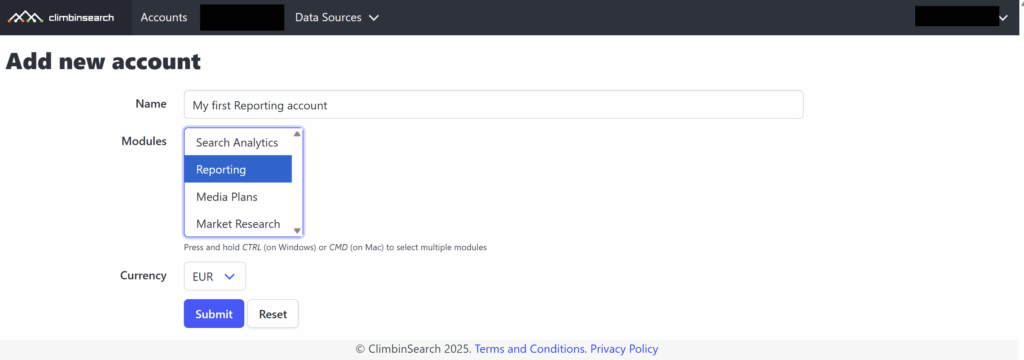
2) You will be redirected to the add new account page, where you will have to select the Reporting module. Also, select a currency that matches your Google Ads account currency. If you can’t find the currency in the list, please drop us an email at support@climbinsearch.com.
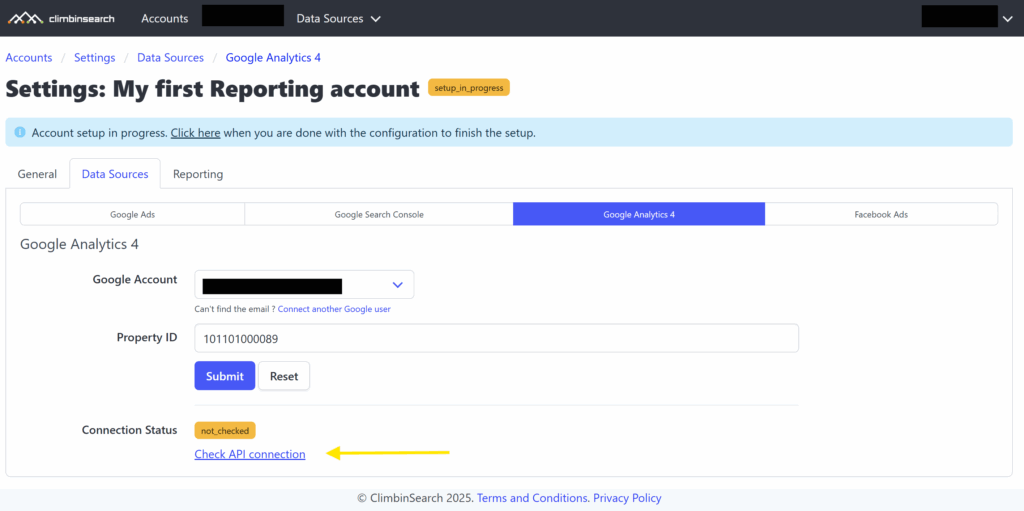
3) Once you have created the account, you need to define at least one Data Source; here is an example of how to define Google Analytics 4 connection from the Settings -> Data Sources -> Google Analytics 4 tab.
Follow this post on how to connect Google Ads and/or Google Search Console.
Note: after you have added the account, do not forget to test the API connection. This way we make sure the ClimbinSearch can access the Google Analytics account data.
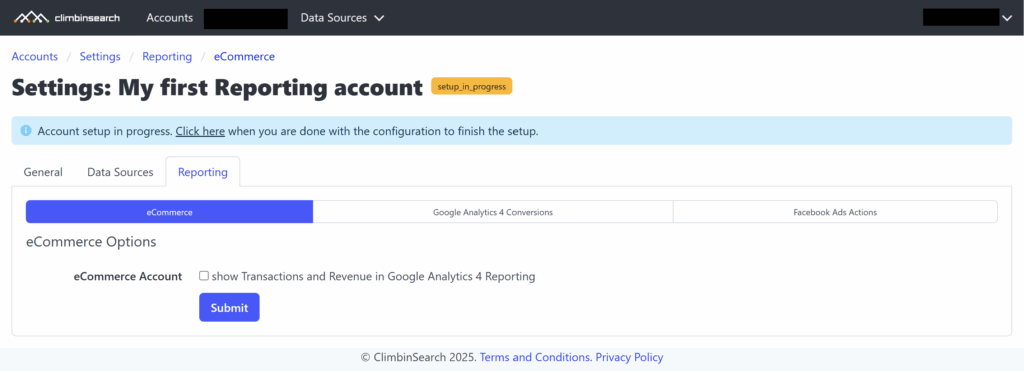
4) Optionally, you can mark the account as an “eCommerce account”, which means that Transactions and Revenue metrics will be displayed in the reporting dashboards. You can do that from Settings -> Reporting -> eCommerce tab: